> For the complete documentation index, see [llms.txt](https://docs.developer.disruptive-technologies.com/llms.txt). Markdown versions of documentation pages are available by appending `.md` to page URLs; this page is available as [Markdown](https://docs.developer.disruptive-technologies.com/data-connectors/creating-an-azure-data-connector.md).
# Creating an Azure Data Connector
This guide describes how to set up an Azure Data Connector, which forwards sensor events from DT Cloud into an Azure Event Hub or Service Bus in your Azure subscription.
*Last verified against the Azure Portal and DT Studio in July 2026. Menu names and screenshots reflect the portal as of that date. The underlying setup does not change often, so the steps remain valid even if a control has moved.*
### Overview
An Azure Data Connector forwards live [sensor events](https://docs.developer.disruptive-technologies.com/concepts/events) from DT Cloud into an Azure Event Hub or Service Bus that you own. From there you can ingest, store, or process the data using your own Azure services.
The process is similar for Event Hubs and Service Bus. Compare the two in the [Azure documentation](https://learn.microsoft.com/en-us/azure/service-bus-messaging/compare-messaging-services#azure-event-hubs) to decide which suits your use case. DT recommends Event Hubs, as it is a simple way to ingest a large amount of data and store it in blob storage or a data lake.
The connection uses [Workload Identity Federation](https://learn.microsoft.com/en-us/entra/workload-id/workload-identity-federation). DT Cloud does not hold an Azure secret. Instead, it presents a short-lived OpenID Connect (OIDC) token that Microsoft Entra ID validates before granting access. There is no secret to exchange or rotate between the two systems.
The setup can be summarized in a few steps.
1. DT Cloud presents an OIDC token that contains your DT Studio Organization ID as the subject.
2. Microsoft Entra ID validates the token against a federated credential on an app registration. You configure the credential to trust only tokens that carry your Organization ID.
3. The app registration has permission to send to your Event Hub or Service Bus, and the event is delivered.
```mermaid
flowchart LR
A[DT Cloud] -->|"OIDC token"| B[Microsoft Entra ID]
B -->|"Validates"| C[App registration]
C -->|"Sends event"| D[(Event Hub / Service Bus)]
```
The remainder of this guide configures the three components involved: an app registration, a federated credential, and a send permission on your Event Hub or Service Bus.
#### Message Handling
DT does not guarantee ordering, and does not populate partition keys for Service Bus. Duplicate detection is supported: each message carries a unique ID that Azure can use for duplicate detection if you enable it.
### Prerequisites
**DT Studio User Account**
Creating, updating, and deleting Data Connectors requires that your user or service account has been granted the role **Project Developer** or higher.
**DT Studio Organization ID**
Note down the Organization ID of the Studio organization where you want to set up the Data Connector. You can find it by clicking your organization's name in the lower-left corner of DT Studio.
**Microsoft Azure account**
An Azure account with sufficient permissions to create an app registration and credentials in Microsoft Entra ID.
**Service Bus or Event Hub**
A Service Bus or Event Hub to send events to. For guidance on creating them, see the Azure documentation for [Event Hubs](https://learn.microsoft.com/en-us/azure/event-hubs/event-hubs-create) or [Service Bus](https://learn.microsoft.com/en-us/azure/service-bus-messaging/service-bus-quickstart-portal).
#### Values You Will Collect
You create the following values during setup, then enter them into the federated credential and DT Studio. We recommend keeping them together as you go.
| Value | Where it comes from |
| ------------------------------ | ------------------------------------------------------------------------ |
| DT Studio Organization ID | DT Studio, by clicking your organization's name in the lower-left corner |
| Directory (tenant) ID | The app registration Overview page |
| Application (client) ID | The app registration Overview page |
| Queue, Topic, or Event Hub URL | The Service Bus or Event Hub resource |
The Organization ID is entered into the federated credential in Azure as the subject. The Tenant ID, Client ID, and URL are entered into DT Studio.
### Setting Up Workload Identity Federation
There are three steps: create an app registration, add a federated credential that trusts DT Cloud, and grant the app registration permission to send messages.
#### Creating an App Registration
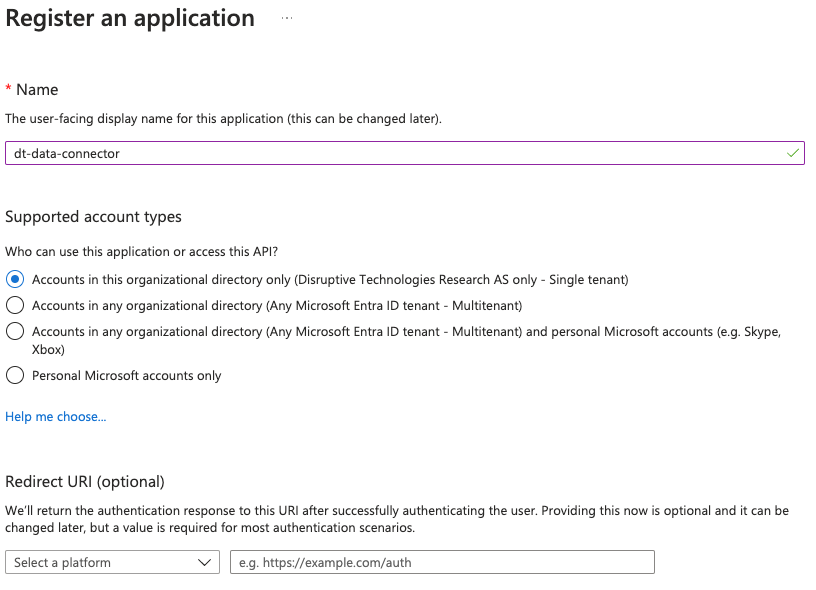
In Microsoft Entra ID (formerly Azure AD), select **Manage**, then **App registrations**, then **+ New registration**. Give the application a name and keep the other settings at their defaults. Only a single tenant is supported, and the redirect URI is not relevant here.
Open the **Overview** page of the app registration and note down the **Application (client) ID** and the **Directory (tenant) ID.** You will enter these into DT Studio in a later step.
#### Adding a Federated Credential
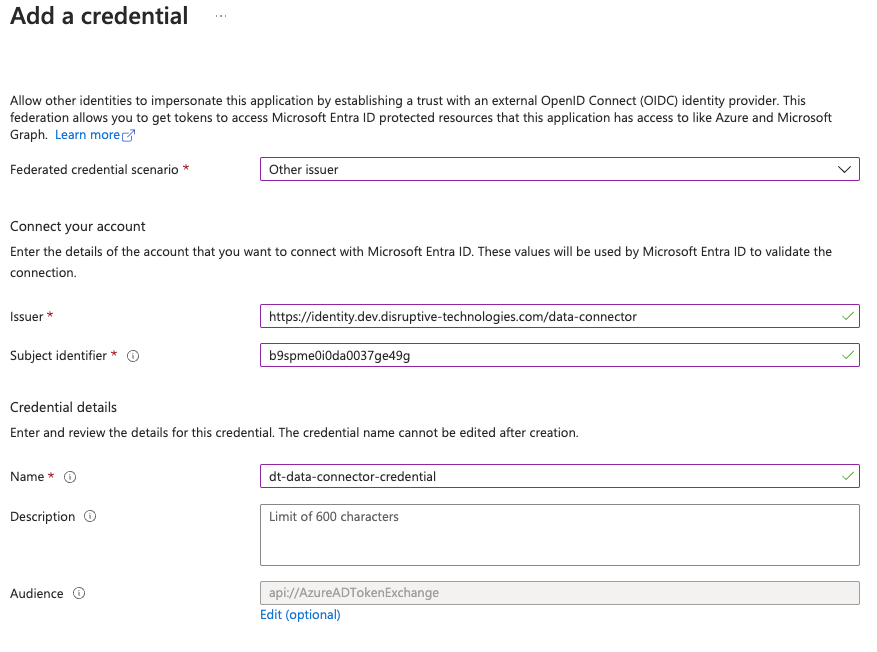
On the app registration, go to **Manage**, then **Certificates & secrets**, and select the **Federated credentials** pane. Select **+ Add credential** and set the following.
* **Federated credential scenario:** Other issuer
* **Issuer:** `https://identity.disruptive-technologies.com/data-connector`
* **Subject identifier:** your DT Studio Organization ID
* **Audience:** keep the default, `api://AzureADTokenExchange` Give the credential a name and, optionally, a description, then save it.
Azure now trusts the DT OpenID Connect provider and will federate authentication without any secret being exchanged between the systems.
#### Granting Send Permission
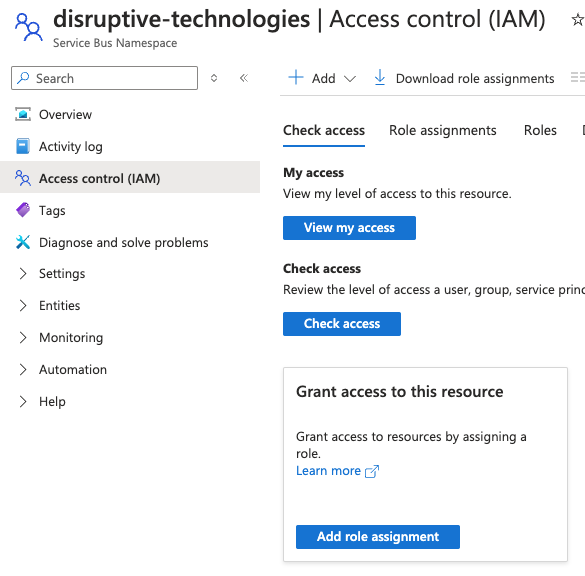
The app registration can be granted permission on a whole namespace, or on a specific queue, topic, or event hub. Select **Access control (IAM)** on the resource you want to grant access to, then **Add role assignment**.
Assign the send role for your product: **Azure Service Bus Data Sender** for Service Bus, or **Azure Event Hubs Data Sender** for Event Hubs. Select the app registration you created as the member, then select **Review + assign**.
Any DT Data Connector in your organization can now send messages to the resource you granted access to.
### Creating the Data Connector in DT Studio
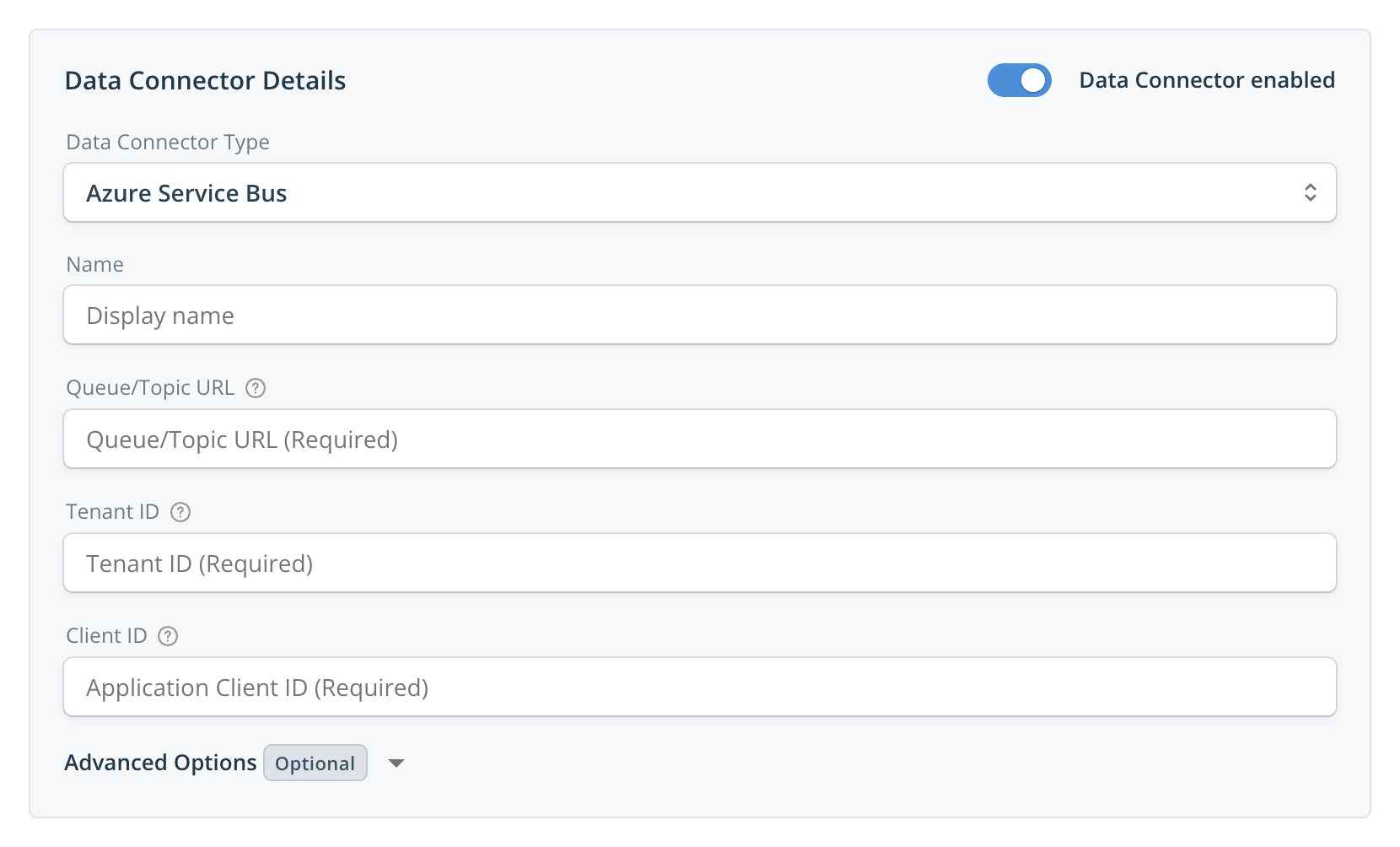
In [DT Studio](https://studio.disruptive-technologies.com/), navigate to the project you want to set up a Data Connector in. In the left menu, locate **Data Connectors** under **API Integrations** and select **Add Data Connector**.
Enter the following parameters from your collected values.
* **Name:** an identifiable display name for the Data Connector.
* **Queue/Topic URL:** the URL of the Service Bus queue or topic, or the Event Hub.
* **Tenant ID:** the Microsoft Entra ID directory (tenant) ID where the app registration is located.
* **Client ID:** the Application (client) ID from the app registration.
* **Correlation ID (advanced, Service Bus only):** a free text field used for filtering. For example, if several Data Connectors share one Service Bus but should route to different services in Azure, you can set a different Correlation ID on each and filter on it. See [correlation filters](https://learn.microsoft.com/en-us/azure/service-bus-messaging/topic-filters#correlation-filters) in the Azure documentation. The Queue/Topic URL must be on the form `https://[NAMESPACE].servicebus.windows.net/[QueueName|TopicName|EventHubName]`. Any URL that does not match this pattern will be rejected. For example, `https://my-namespace.servicebus.windows.net/my-event-hub` is valid.
Save the Data Connector.
### Testing Your Data Connector
The simplest way to test the connection is to forward an event in one of the following ways.
* Wait for a sensor in the project to emit an event through its [periodic heartbeat](https://docs.developer.disruptive-technologies.com/concepts/events#periodic-heartbeat).
* Touch a sensor to force an emitted event.
* Use the [Sensor Emulator](https://disruptive.gitbook.io/docs/sensor-emulator) to publish an emulated event. Once an event has been forwarded, it will be visible as an individual message in Azure. You can verify that an event was forwarded successfully by looking at the Data Connector metrics at the top of the Data Connector page in DT Studio.
If the error counter is incrementing, DT Cloud is unable to forward events to your endpoint. The table below lists the common causes. Note that these failures do not produce an error message, only the incrementing counter, so it is worth checking each one.
| Cause | What to check |
| ---------------------------------- | ------------------------------------------------------------------------------------------ |
| Wrong Queue/Topic URL | The URL must match the `https://[NAMESPACE].servicebus.windows.net/...` pattern. |
| Wrong Client or Tenant ID | Confirm both against the app registration Overview page. |
| Missing send permission | The app registration must have the Data Sender role on the namespace or resource. |
| Namespace rejects external traffic | Confirm the Service Bus or Event Hub network settings allow traffic from DT Cloud. |
| Wrong subject | The federated credential subject must be your Organization ID. A Project ID will not work. |
| Wrong issuer | The issuer must be `https://identity.disruptive-technologies.com/data-connector`. |
| Product mismatch | Confirm you have not configured a Service Bus connector for an Event Hub, or the reverse. |
### Frequently Asked Questions
**Do I need a secret or certificate?**
No. The Data Connector uses Workload Identity Federation, so no secret or certificate is exchanged or stored.
**Should I use Event Hubs or Service Bus?**
Both are supported. DT recommends Event Hubs for ingesting large amounts of data into blob storage or a data lake. See the [comparison in the Azure documentation](https://learn.microsoft.com/en-us/azure/service-bus-messaging/compare-messaging-services#azure-event-hubs).
**Is message ordering guaranteed?**
No. DT does not guarantee ordering, and does not populate partition keys for Service Bus.
**Is duplicate detection supported?**
Yes. Each message carries a unique ID that Azure can use for duplicate detection if you enable it on the queue or topic.
**Can one Data Connector serve multiple projects?**
A Data Connector is configured per project. Set one up in each project that should forward events. They can all target the same namespace.
**Can I route messages from one namespace to different services?**
For Service Bus, set a different Correlation ID on each Data Connector and filter on it. See [correlation filters](https://learn.microsoft.com/en-us/azure/service-bus-messaging/topic-filters#correlation-filters).